What it is
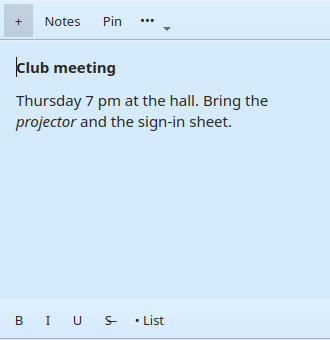
Each note is its own small window that you can move, resize, colour and pin on top of other windows. Notes save themselves as you type and come back where you left them the next time you start the program.
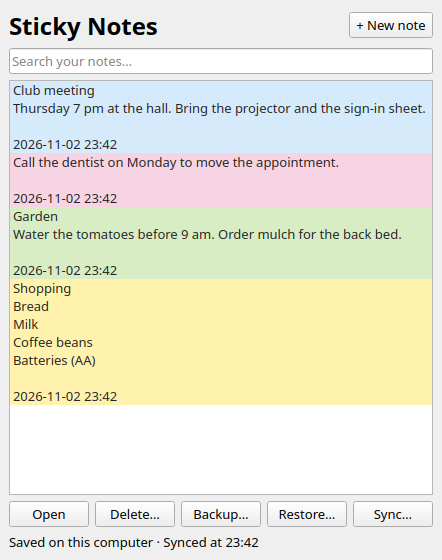
The notes list shows every note, open or closed, with a search box. Close a note to tidy it away; double-click it in the list to bring it back.
Everything stays in a small database in your own user folder. Sync is optional and off until you turn it on, and even then your notes only travel to a server in your own home.
Screenshots
Features
Notes
- Six colours, and a pin to keep a note on top
- Bold, italic, underline, strikethrough and bullet lists
- Saves as you type, and when you close a note
- A searchable list of all your notes
- Backup to a file, and restore from one
- Times shown in your own time zone
Sync at home
- Keeps your notes the same on every computer at home
- Any computer running Sticky Notes can be the server, or use a home server
- New computers find the server by themselves and join with a one-time code
- Encrypted between your computers; nothing leaves your network
- A note changed on two computers keeps both versions
- Works offline: changes wait until the server is back
Installing
Windows
- Download
StickyNotes-0.3.3-Setup.exeand run it. It installs for your user only, so no administrator password is needed, and adds Sticky Notes to the Start menu. - Leave Allow Sticky Notes through Windows Firewall ticked if you will sync. Windows asks once for administrator permission to add the rules; if you say no, Sticky Notes still installs, and Windows asks about the firewall later instead.
- The installer is not code-signed, so Windows SmartScreen may warn you first: choose More info, then Run anyway.
Linux
- Download
local-sticky-notes_0.3.3_amd64.deband install it:sudo apt install ./local-sticky-notes_0.3.3_amd64.deb - Start Sticky Notes from your applications menu.
On other Linux systems, use the portable download: extract it and run ./StickyNotes/install.sh, which installs for your user only.
Notes are kept in %LOCALAPPDATA%\LocalStickyNotes on Windows and ~/.local/share/LocalStickyNotes/ on Linux, and are left alone when you upgrade or uninstall. Close Sticky Notes before upgrading.
Sync between computers
Sync needs one computer at home that is usually on to be the server. The server comes with Sticky Notes, so there is nothing else to install.
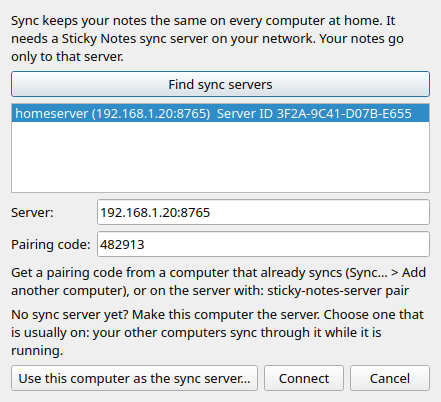
- On the computer that will be the server, open the notes list, choose Sync…, then Use this computer as the sync server. It runs in the background, keeps running when Sticky Notes is closed, and starts when you sign in.
- On that computer, choose Sync… > Add another computer. It shows a six-digit pairing code, good once, for ten minutes.
- On each other computer, choose Sync…. The server is found by itself (or type its name or address). Pick it, type the code and choose Connect.
Notes sync every minute, and when Sticky Notes starts and closes. Text, colour and pinning are shared; where each note sits on the screen stays on each computer. Deleting a note deletes it everywhere.
If a firewall runs on the server computer, allow Sticky Notes sync server on your home network (TCP port 8765, and UDP port 5353 so other computers can find it). Windows asks the first time the server starts.
On a home server
For a Linux machine without a desktop, install the separate sync server package, start it, and get a pairing code:
sudo apt install ./sticky-notes-server_0.3.3_amd64.deb
sudo systemctl enable --now sticky-notes-server
sudo sticky-notes-server pair
Then connect each computer as in step 3. sticky-notes-server devices lists the paired computers and revoke removes one.
Downloads
Version 0.3.3, 3 November 2026.
Sticky Notes 0.3.3 for Windows
Installer for 64-bit Windows 10, 11 and Server 2022 or later. Installs for your user only; no administrator rights needed, except once for the optional firewall rules. Includes the sync server.
SHA-256 c696f142f615a3ba0ac98ebbe9abffcbd8e21a2854b6cfdca7c190e6b9695f42
Sticky Notes 0.3.3 for Linux
Package for 64-bit Ubuntu 24.04 or later, Kubuntu, Debian 13, Mint 22 and other Debian-based systems. Includes the sync server.
SHA-256 b1fe871f2357781868e4aac7a28f3e4f0d20f0662b4b70e07dcf4cdc589dd11e
Sticky Notes 0.3.3 for Linux, portable
For other 64-bit Linux systems, or to install without sudo: extract it and run StickyNotes/install.sh.
SHA-256 bfcd1b9d9d071f8556854d335ab0d8d46abe7f98a41a436202cfe2fd626df74c
Sync server on its own, for Linux
For a home server or virtual machine without a desktop. Runs as a system service. Not needed if a computer running Sticky Notes is your server.
SHA-256 7d458f6ee06657c236462d6adc8a6467ca60022e291b97cc6ec3f091fbee3fe5
Sticky Notes 0.3.3 source code
Python and PyQt6 source, with the tests and the build scripts for Linux and Windows. GNU GPL version 3 or later.
SHA-256 1181d03c0cf9deab34e506e37370ed9a2f34396a0e3b246d1eb8279208a3d0b3
Checksums
SHA-256 checksums of all the files above.
SHA-256 f40b8adbc053ed9c053302e3af858dbb2d99e779da1127f8df28be0cd3e85497
Also on the BBS in the file area Heisenbergs Files. The read me covers everything on this page in more detail.
The Windows installer is built here under Wine and has been tested on Windows Server 2022. If something doesn't work on your PC, please let me know.
What's new
0.3.3: computers find the sync server more reliably (a Windows laptop could miss it and need the address typed in). The Windows installer can add the firewall rules, and uninstalling removes them.
0.3.2: the first public release. On Windows the sync server now refuses to share its port with a second server; stopping the server is quicker on Linux. Released under the GNU GPL.
0.3.1: any computer running Sticky Notes can be the sync server, switched on from the Sync window.
0.3.0: sync between computers at home, through a sync server on your own network.
0.2.2: times shown in your own time zone; a note's time only changes when its text does; only one copy of the program runs at a time.
Licence and source
Sticky Notes is Copyright © 2026 Michael Slater. It is free software: you may copy, change and share it under the GNU General Public License, version 3 or (at your option) any later version. It comes with no warranty. The source is in sticky-notes-0.3.3-source.tar.gz above; it is written in Python with PyQt6, and builds for Linux, and for Windows on Windows or under Wine.
Contact
Questions, bug reports and suggestions are welcome. Email slaterm@theiguru.au, or leave a message for the sysop on the Kalgoorlie Retro BBS (telnet bbs.theiguru.au).